MediaSFU Voice
Cloud phone, SIP, and human-to-AI handoff
Make and receive calls from the browser with a full softphone, SIP/PSTN support, contact-enriched caller display, DTMF dialpad, recordings, and human-to-AI handoff. Bring your own SIP provider, use the system pool, and avoid platform bridge markup.
Try it now · no signup
Call the desk yourself, then watch it arrive
The customer side is a real click-to-call button and the operator side is the real calls workspace, both on the same session.
Try it now
Call our service desk right now — no signup
Press call and let it ring through. The desk beside it shows who is calling before anyone answers.
Runs in this browser. Nothing is created until you press start.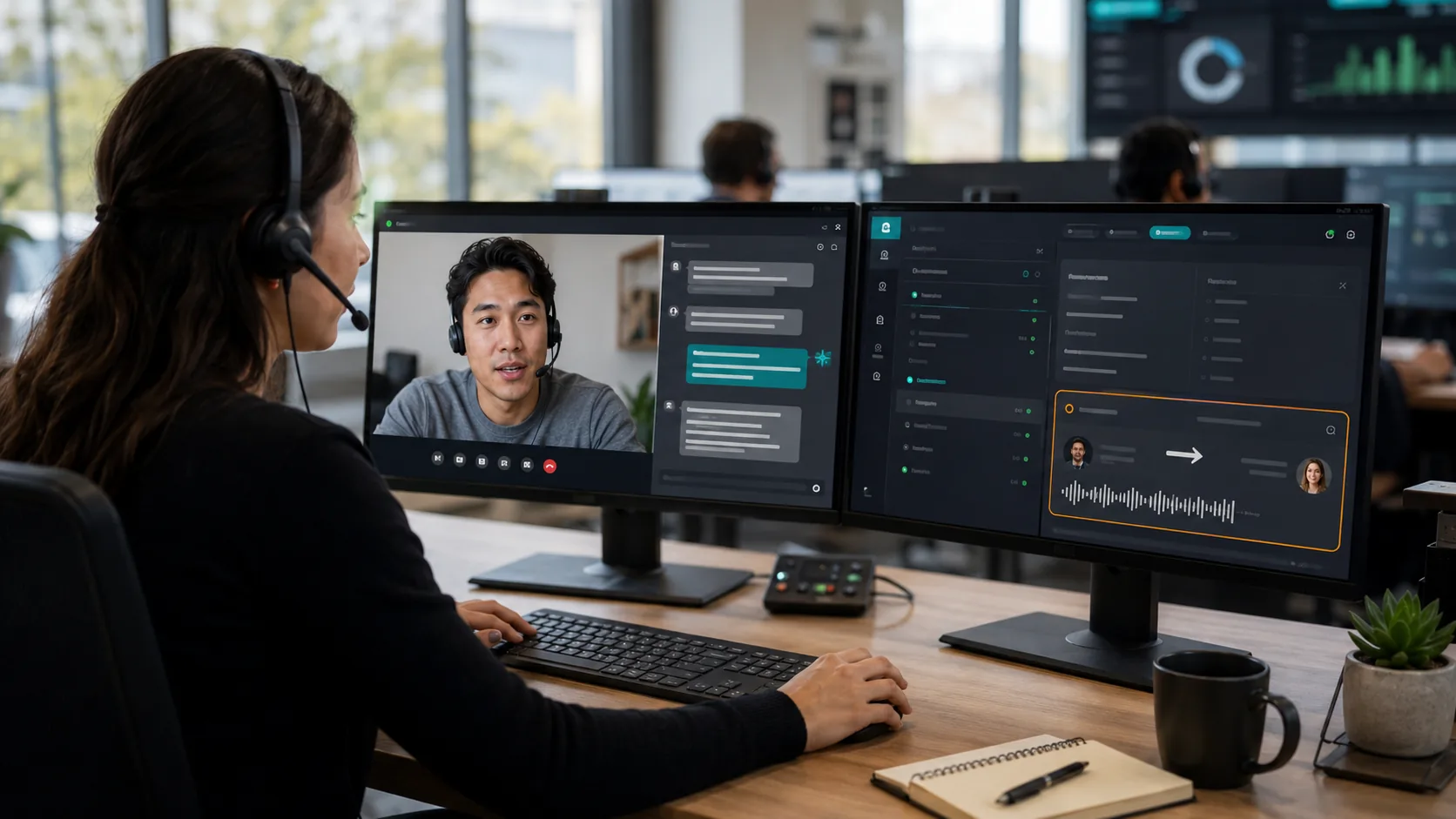
- 1Call button is ready
- 2Call connects in the browser
- 3Calls workspace opens on the same session
- 4Desk answers, holds, or mutes the call
Perfect For
Call Centers
AI handles tier-1 calls automatically, with one-click human takeover when needed. Real-time call monitoring, TTS injection, and CRM-synced contact display for every call.
Learn moreRemote Teams
Cloud PBX from any browser — no hardware required. Persistent call rooms let you dial multiple numbers without reconnecting, with contact favorites for quick access.
Learn moreGlobal Operations
Bring your own SIP provider (Twilio, Vonage, Plivo, Telnyx) or use the MediaSFU system SIP pool for instant outbound calling — no trunk setup required.
What You Can Do
Feature-rich tools designed for real-world workflows
Human ↔ AI Mid-Call Handoff
Seamlessly switch between human operator and AI agent during a live call. The AI handles the conversation until you're ready to take over — or hand it back.
- One-click "Take Control" — unmutes your mic and becomes the active speaker
- "To Agent" — hand the call back to AI with full conversation context
- Start/Stop Agent — launch or pause the bot mid-conversation
- Smart Source Switch — one button that auto-detects the best action
- Bot audio scope — choose whether AI audio plays to caller only or all participants
Advanced Call Controls
A complete softphone inside your browser with professional-grade call management tools.
- Text-to-Speech injection — type text and play it as synthesized speech into the live call
- Audio URL playback — stream any audio file into the call with loop & immediate-play options
- Hold with custom message — place calls on hold with a spoken message, optionally pause recording
- Microphone device selector — switch input devices without leaving the call
- Real-time audio level meter with color-coded mic status (Active/Muted/Disconnected)
Contact-Enriched Calling
Every call is automatically enriched with contact data from your address book or connected CRM.
- Caller ID lookup — see contact name, company, and avatar for incoming and active calls
- Contact search while dialing — find contacts by name or number with favorites shown first
- Call logging to contacts — duration and outcome automatically recorded per contact
- CRM sync — call data logged to Salesforce, HubSpot, or your connected CRM
- Per-contact call history — see total calls and last-called date at a glance
Full DTMF Dialpad & Call Flow
A guided 5-step call wizard ensures every outbound call is properly configured.
- Step 1: Select your outbound number from configured SIP lines
- Step 2: Enter or search a phone number with real-time E.164 validation
- Step 3: Choose call mode — Bot Call (AI handles it) or Voice Call (you talk)
- Step 4: Connecting with live status feedback
- Step 5: Connected — call is live with full controls available
Flexible SIP Configuration
Use your own SIP trunks or get started instantly with the MediaSFU system SIP pool.
- Own SIP support — Twilio, Vonage, Plivo, Telnyx, or any standard SIP provider
- System SIP pool — instant outbound calling with no trunk setup (credits apply)
- Per-line eligibility display — see which numbers are active for outgoing and AI calls
- Room duration presets — 5, 15, 30, 60, or 90 minute call sessions
- Balance tracking with low-balance alerts (< $5 warning, real-time display)
Call History & Analytics
Comprehensive call log with search, filtering, and detailed per-call data.
- Stats dashboard — total, incoming, outgoing, and missed call counts
- Filter by direction (incoming/outgoing/missed) with search across numbers and contacts
- Expandable call details — SIP URIs, caller ID, room name, duration in seconds
- Color-coded status — completed (green) or failed (red) with direction indicators
- 90-day retention with paginated results (20 per page)
Usage Scenarios
Real-world workflows, step by step
Making an AI-Handled Outbound Call
Let the AI agent handle a call entirely — from dialing to conversation to hangup — while you monitor.
Handling Incoming Calls with AI Backup
Answer inbound calls normally, then hand off to AI when you need a break — or let AI handle it from the start.
Running a Multi-Call Session
Create a persistent voice room and dial multiple numbers back-to-back without recreating rooms.
Getting Started Without a SIP Trunk
No SIP provider? Use the MediaSFU system SIP pool for instant outbound calling.
$10/year to connect your own SIP. MediaSFU does not add SIP bridge markup.
- Zero bridge surcharges
- Full browser softphone included
- Call recording & hold controls
- Human ↔ AI handoff
- Contact enrichment & CRM sync
Works With
Part of These Solutions
Ready to launch cloud phone or SIP workflows?
Call the demo first, then open the softphone or connect your own SIP.