Use defaults for repeated sessions
Save layout, joining, safe-room, and media behavior once instead of choosing every option each time.
Step through rooms, recordings, billing, API keys, domains, SIP settings, widgets, translation, AI notes, and account controls without starting from SDK code.
Before You Continue
This page is focused on dashboard usage and practical walkthroughs. For lower-configuration or developer-first paths, jump directly with the links below.
Learn which dashboard area to use before configuring rooms or services.
Your home base for meetings, calls, and more
The MediaSFU Dashboard is your central hub for managing video meetings, phone calls, recordings, and account settings. It's designed for non-technical users who want to get started quickly without any coding.
What is MediaSFU?
MediaSFU is a cloud platform for real-time video, audio, and messaging. You can host video conferences, webinars, broadcasts, and chat sessions — either through our prebuilt UI or by integrating our SDKs into your own app.
Four room types — Conference, Webinar, Broadcast, and Chat — each built for different use cases. Rooms can be created via the dashboard or API.
Host, Co-Host, Participant, and Observer roles with granular permissions for audio, video, screen sharing, and chat.
Cloud recording with pause/resume, multiple output formats (portrait/landscape), and HLS conversion for on-demand playback.
Real-time voice translation across 50+ languages. Speakers and listeners each choose their language independently — delivered as spoken audio, not subtitles. Voice cloning lets AI agents and translations speak in the original speaker's voice.
This section is written as a non-technical guide for dashboard users. If you want the simplest path, use the Lite Dashboard and follow each tab step-by-step. If you are building a custom app with code, use the Developer Documentation or the Quick Start Tutorial instead.
MediaSFU provides four room types for real-time collaboration and streaming. Each is optimized for a specific use case — from small team calls to large-scale broadcasts.
Multi-participant meetings with video, audio, chat, and screen sharing
Presenter-focused rooms with a main stage for the host
One producer streams to many viewers with full recording support
Lightweight rooms for direct messaging between participants
Dashboard: Create tracked, logged rooms with full control over type, duration, capacity, and permissions. All records are accessible in your dashboard.
Public Demo: Anyone can start an untracked demo meeting at meeting.mediasfu.com — no account required. These meetings are free and unbilled.
Comprehensive guide to managing your MediaSFU account balance and billing
View and manage your account balance
Your MediaSFU account operates on a flexible pay-as-you-go basis, with usage billed directly from your account balance. Minutes are priced based on video quality, with Standard Definition (SD) serving as the base rate for calculations.
Each environment (Demo, Sandbox, Production) maintains separate balance tracking, allowing you to manage costs independently across different stages of your development and deployment lifecycle.
Limited balance for testing and exploration of platform features
Development environment balance for testing integrations
Live environment balance for real-world usage
| Video Quality | Rate Multiplier | Use Case | Bandwidth |
|---|---|---|---|
| Standard Definition (SD) | 1x (Base Rate) | Basic video calls | ~500 kbps |
| High Definition (HD) | 2x Base Rate | Professional meetings | ~1.5 Mbps |
| Full HD (FHD) | 3x Base Rate | High-quality streaming | ~3 Mbps |
| 4K Ultra HD | 5x Base Rate | Premium experiences | ~8 Mbps |
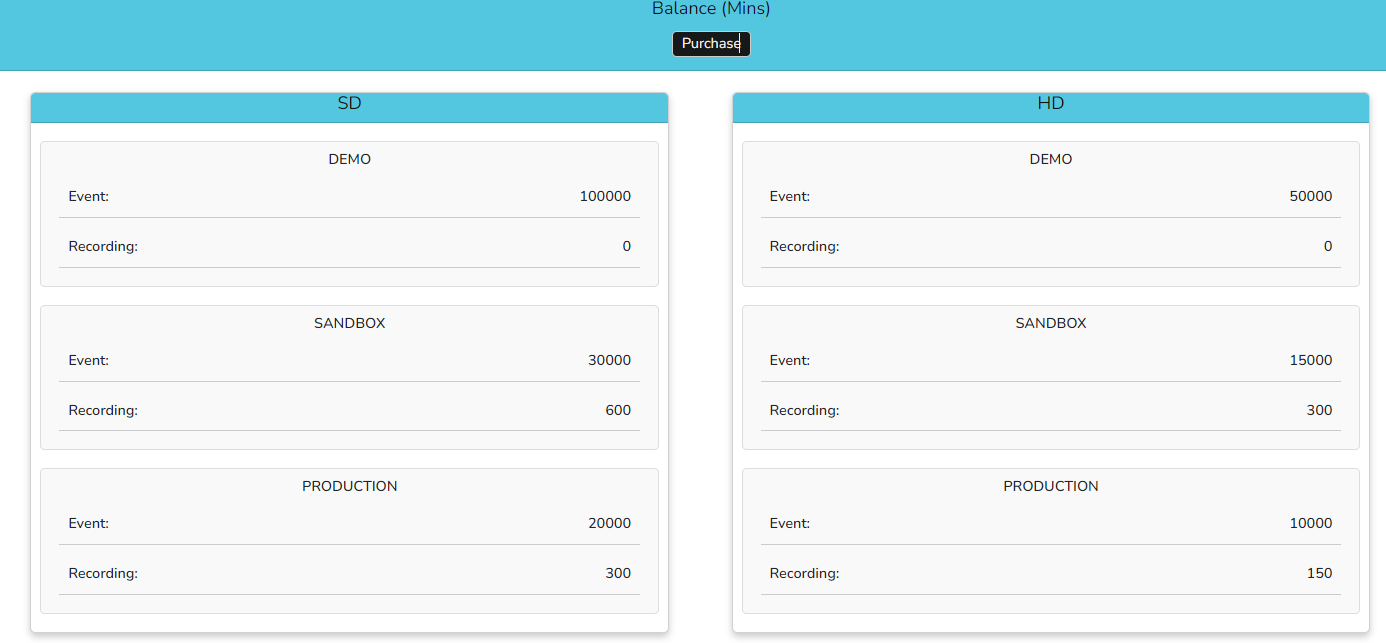
Account balance dashboard with real-time usage tracking
Consumer plans for direct use, developer plans for building with our APIs.
MediaSFU offers two subscription tracks: Consumer plans for individuals and teams who use the platform directly (via the Lite Dashboard), and Developer plans for those building custom applications with MediaSFU APIs and SDKs. You can explore most features in the Sandbox environment without subscribing.
Upgrade, downgrade, or renew at any time from your dashboard. Upgrades take effect immediately; downgrades and renewals can be initiated up to one month before expiry.
Learn about managing and utilizing domains on MediaSFU, including registration, verification, and control functions.
Managing domains on MediaSFU is a crucial aspect of controlling API access and facilitating institution logins. Each user can register a specific number of domains based on their subscription allowances. Once a domain is registered, API requests will only be accepted from this registered domain for production API access.
It is essential to register a domain to be able to use production API access. Requests from unregistered domains or localhost will only be allowed for development and sandbox API access.
Additionally, the domain registration process allows users to enable or disable institution logins for the registered domain. Enabling institution login means that anyone with an email credential@thedomainname can log in or register, provided they authenticate successfully. These users become sub-users under the organization (user) that registered the domain.
You can easily register a domain by navigating to the domains section and create a new one as shown below for example.
Register domains to enable production API requests from your registered domains only
Enable organization-wide login for users with matching email domains
Automatically create sub-users from institution logins under your organization
Control API access based on domain registration and verification
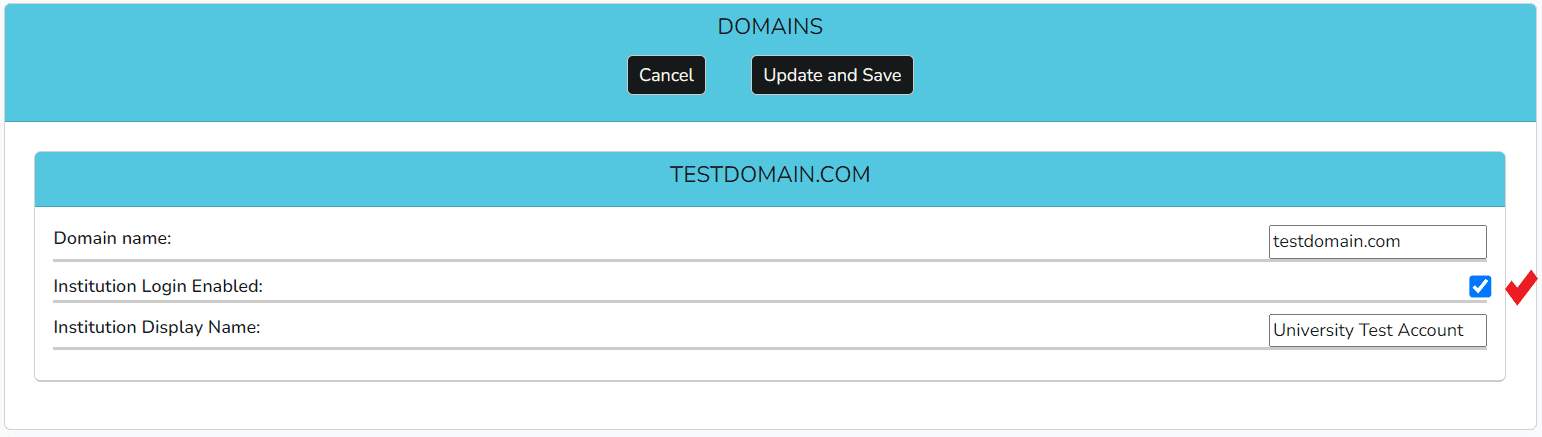
Domain registration interface showing the setup process
Comprehensive platform monitoring and activity tracking for MediaSFU
Understanding MediaSFU Activity Tracking
The Activity feature on MediaSFU provides users with a comprehensive overview of platform usage. It allows users to monitor and track various activities and actions taken by both themselves and their sub-users during sessions.
This administrative control feature gives users visibility into the actions performed on the platform, helping maintain the security and integrity of their sessions.
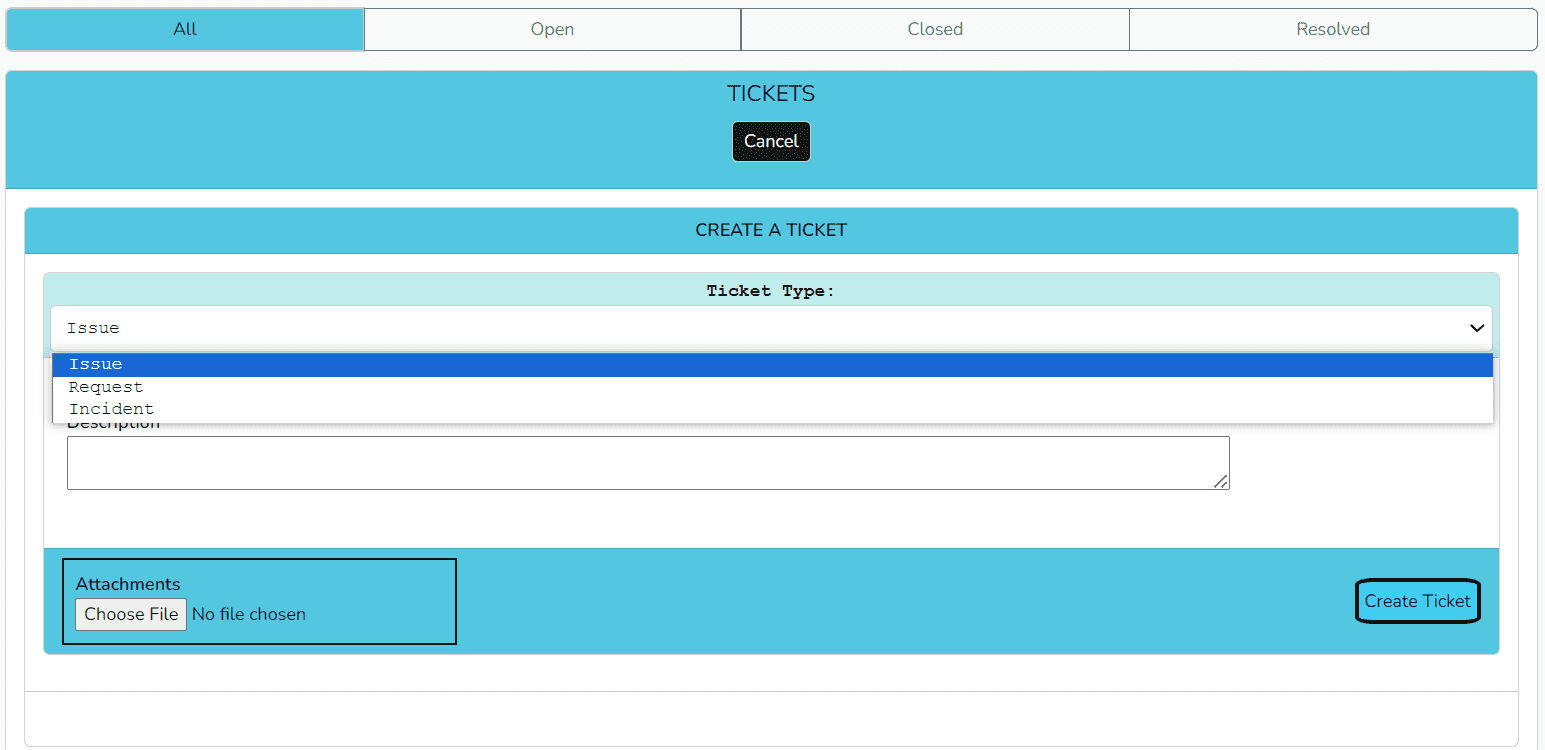
MediaSFU’s ticket system lets you raise and track issues faster than a general support e-mail. Create tickets from your dashboard and follow their progress in real-time.
Priority handling via ticket vs. email.
Real-time visibility into ticket progress.
Add screenshots or PDFs (max 1 MB).
Use event settings when the same room behavior should apply repeatedly: participant layout, safe-room controls, media defaults, and sub-user limits.
What event settings are for
Event settings are saved preferences that MediaSFU can apply when you create rooms. They reduce repeated setup and help teams keep rooms consistent.
Save layout, joining, safe-room, and media behavior once instead of choosing every option each time.
Hosts and team members see the same baseline configuration unless you deliberately change it.
Parent users can decide which settings sub-users may adjust and which ones should stay enforced.
Bring in a developer only when event settings need to be created or updated automatically from another system.
Explore controls and settings related to recordings on MediaSFU. Customize recording parameters, manage sub-user settings, and understand the nuances of parent-child roles.
MediaSFU provides users with comprehensive control over recording parameters, enabling a tailored approach to capturing sessions. Instead of adjusting these settings for each recording individually, users can define default parameters from their dashboard.
Users can customize aspects such as audio and video recording preferences, ensuring that each recording aligns with specific requirements. This centralized approach streamlines the recording process and guarantees a consistent configuration across all recorded sessions.
You can configure the watermark settings, including uploading a PNG file of size 80x80 pixels. Additionally, you can specify the placement of the watermark, choosing from options such as top-left, top-right, bottom-left, or bottom-right.
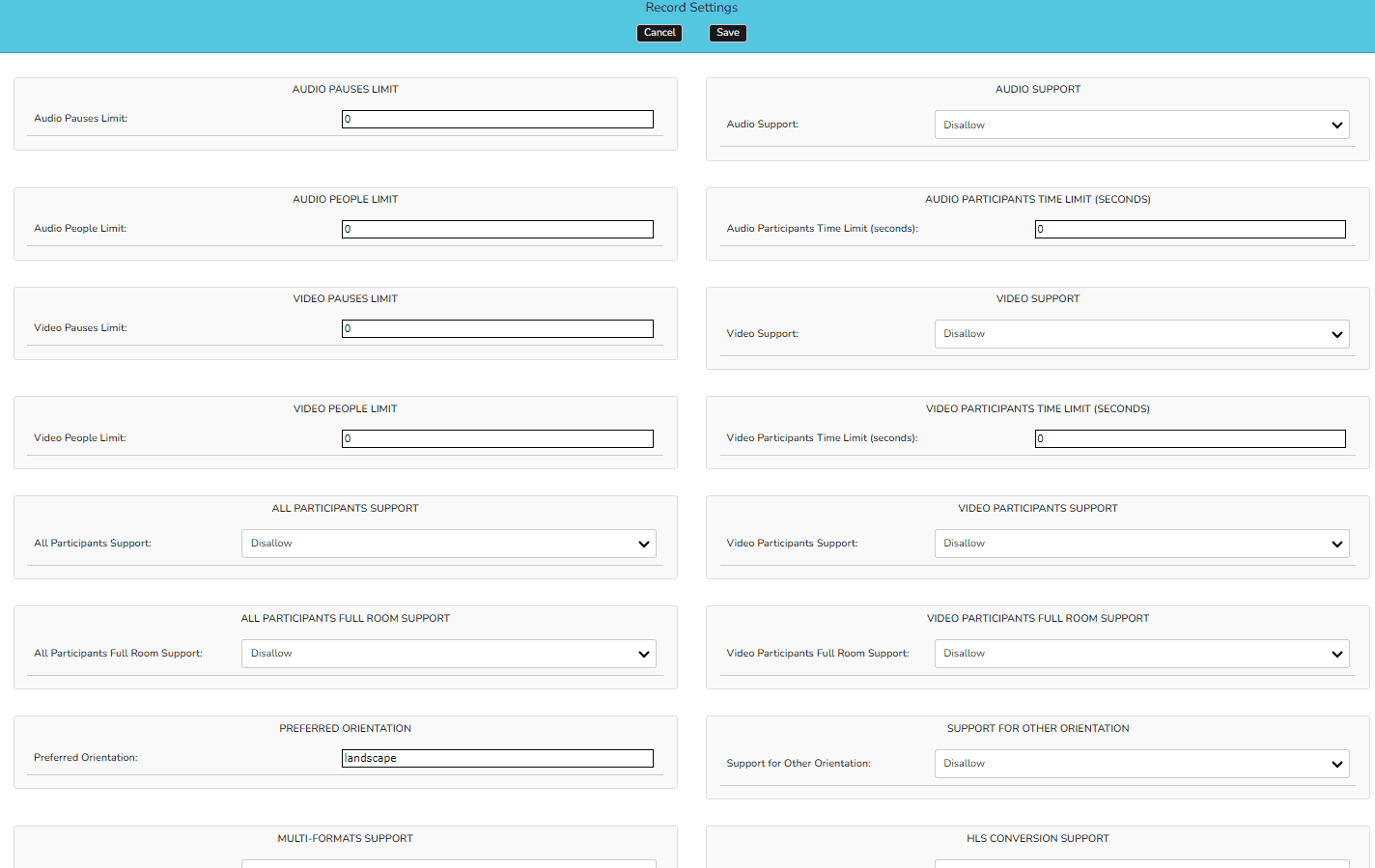
The Recording Settings panel in the user dashboard.
For a detailed explanation of each recording parameter, please see the 'Creating a Room' section in the 'Rooms' documentation.
MediaSFU's sub-user system enables unified sharing, management, and control over usage and settings. It lets you create hierarchical user structures within your organization with different levels of access and permissions.
Centralized control over all sub-users and their permissions
Granular permissions based on user roles and responsibilities
Fits into existing organizational structures
Efficient sharing of credits, settings, and configurations
Sub-users operate within the same account, sharing the balance and credentials automatically. This is useful for institutions, companies, or individual users who want to use the same account under different aliases or for accounting purposes.
As the primary user, you have full control over sub-users, including the ability to manage and monitor their usage across your organization or team.
As the primary user, you have full control over sub-users, allowing you to manage and monitor their activities. The number of sub-users you can manage depends on your subscription tier.
Sub-users can be added programmatically through the API or via the dashboard. When adding sub-users, the default role assigned is 'child.' This role restricts sub-users from making changes on their own. However, if you wish to grant them more autonomy, you can assign the role of 'parent' to enable them to configure settings like event settings, recording parameters, and user-specific preferences.
You can also log in as any sub-user to review their usage, modify settings, and manage sub-accounts directly. This lets you adapt your MediaSFU account as your organization's needs change.
It's important to note that sub-users may not necessarily have the same details as registered domains when added programmatically or via the dashboard.
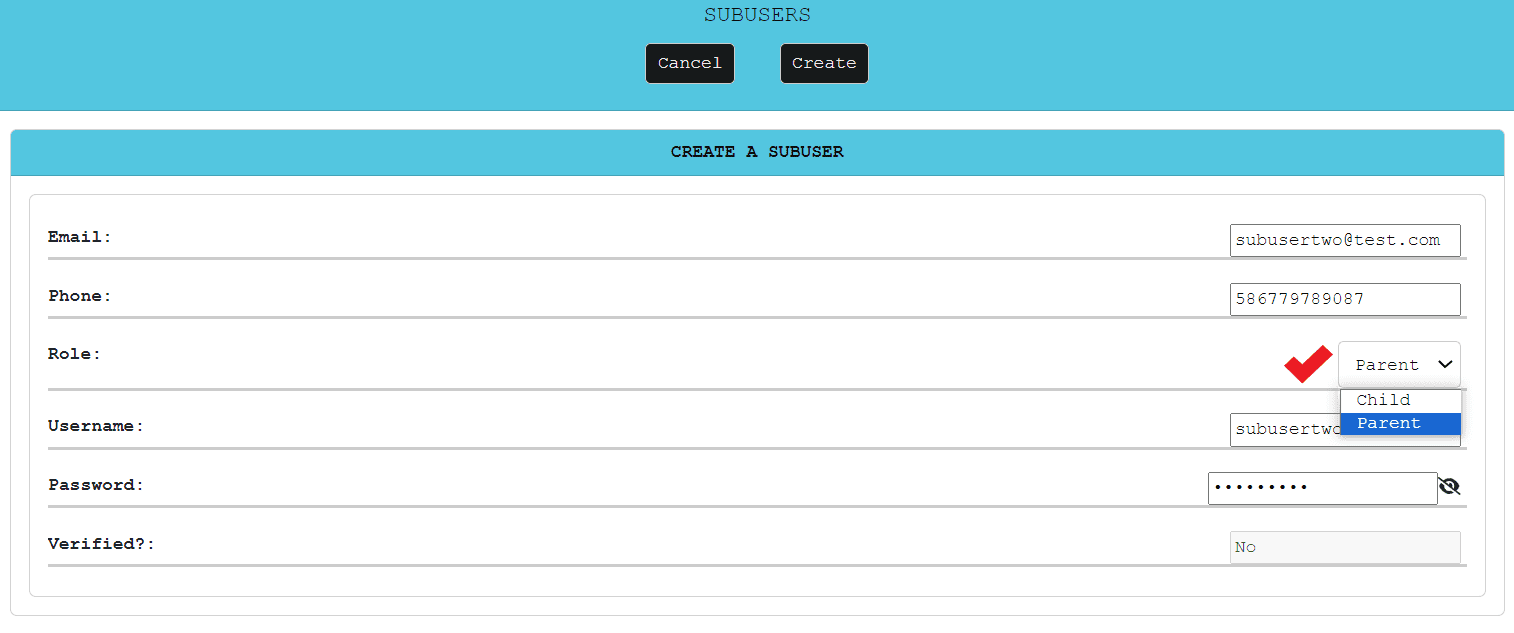
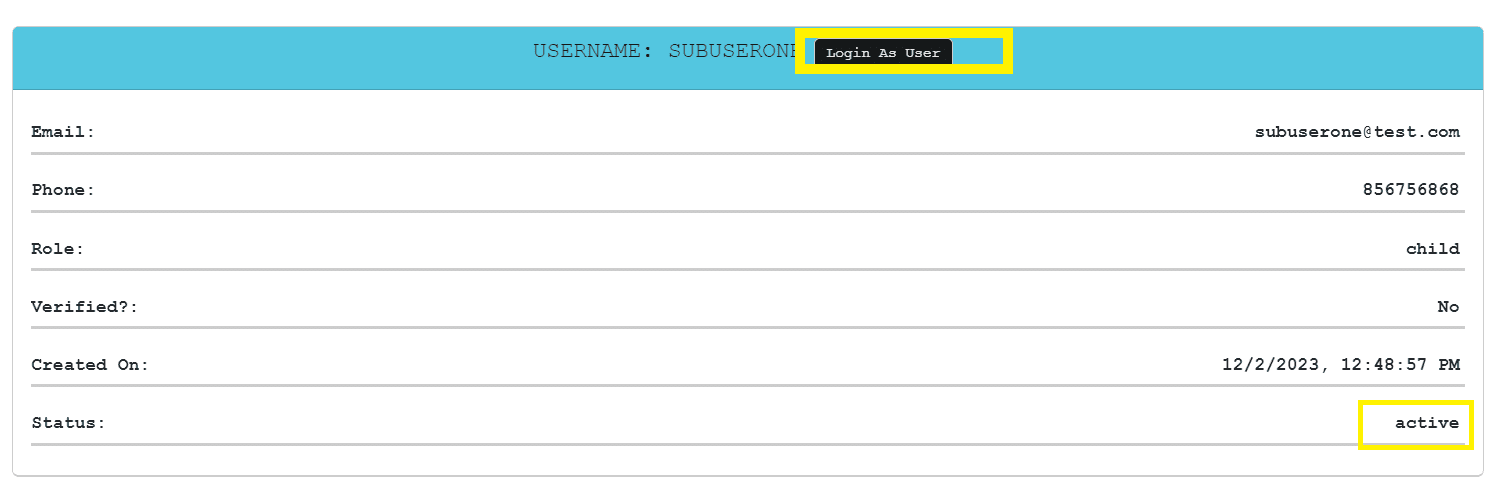
Authentication for sub-users is a secure process designed to ensure the integrity of your MediaSFU account. When sub-users log in, they are required to authenticate via a verification code sent to their institution email. This multi-step authentication process adds an extra layer of security, enhancing the overall protection of your account.
In the event that institutionLogin is disabled, preventing new registrations, existing sub-users can still log in by initiating the 'forgot password' process and setting a new password. If you wish to prevent existing sub-users from logging in, you must manually disable them.
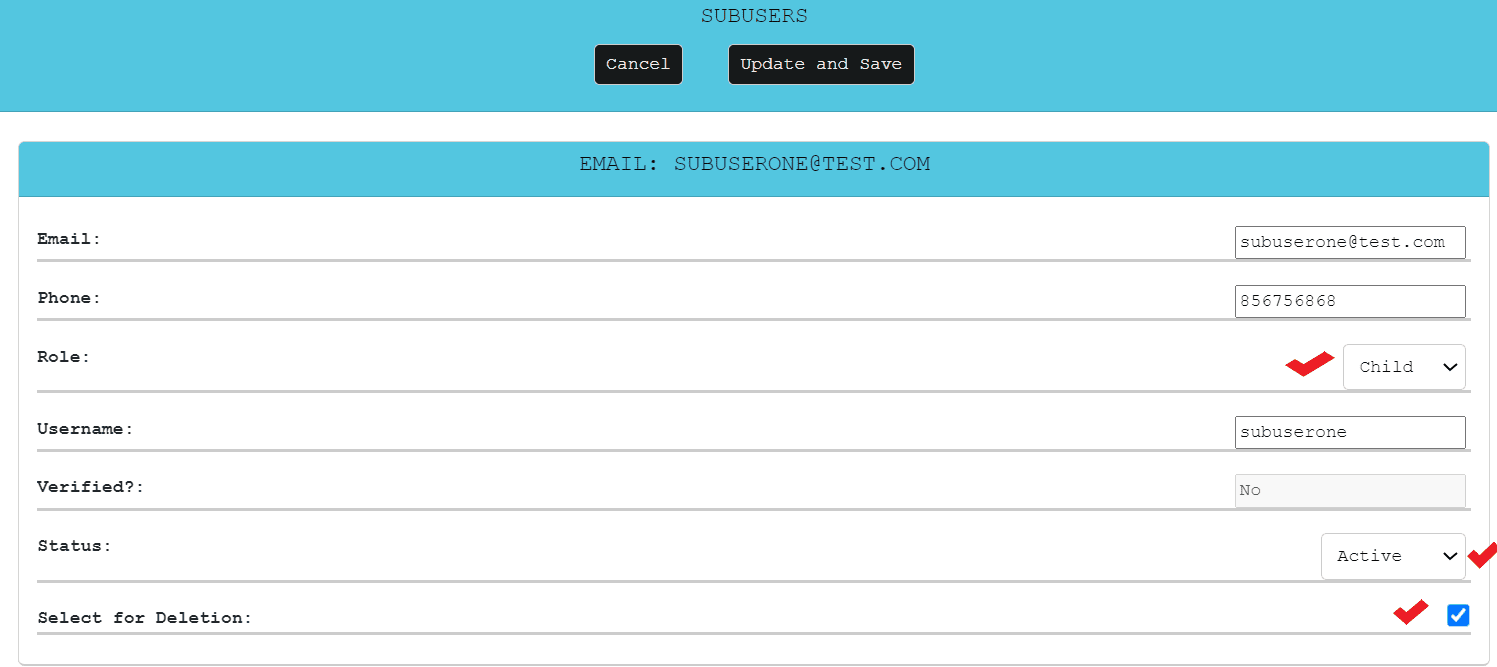
Automate the onboarding process for sub-users with ease, ensuring a smooth integration into your MediaSFU account. Sub-users can be added programmatically through the API or via the dashboard, providing flexibility in accommodating the dynamic needs of your organization.
With institutionLogin enabled for registered domains, individuals authenticated under your domain are automatically created as sub-users under your account. This simplifies onboarding and keeps user management in one place.
Comprehensive guide to MediaSFU recording features and configurations
MediaSFU offers a comprehensive recording feature that allows you to capture your virtual events and meetings. Whether you want to record a webinar, conference, or broadcast, MediaSFU provides the flexibility to tailor your recording settings based on your preferences.
All recordings are stored in the cloud for easy access and sharing.
Pause and resume recordings multiple times during a session.
Get both desktop-friendly and mobile-friendly (HLS) formats.
Customize your recordings further by adding watermarks to your content. In your user dashboard, you can configure the watermark settings, including uploading a PNG file of size 80x80 pixels and specifying its placement.
Review meeting summaries, export transcripts, and control how AI Notes are shared in MediaSFU.
AI Notes help you turn supported meetings into readable summaries, notes, and transcripts inside MediaSFU. The goal is simple: after the meeting, you should be able to open one place in your dashboard and quickly understand what was discussed.
Review the main points without replaying the full session.
Share action items and follow-ups with your team faster.
Download notes or transcripts for internal records and workflows.
Comprehensive guide to managing and securing your MediaSFU API keys
Understanding MediaSFU API Keys
MediaSFU provides users with three distinct API keys, each designated for specific environments: Demo, Sandbox, and Production. Proper usage of these keys is crucial for making API calls to the platform's endpoints. Each endpoint expects an API key corresponding to the environment it serves.
For non-developers, there's no need to worry about managing API keys manually. The platform automatically handles the creation and usage of API keys during the event creation process. This ensures a smooth experience for users who may not be familiar with the technical details of API key management.
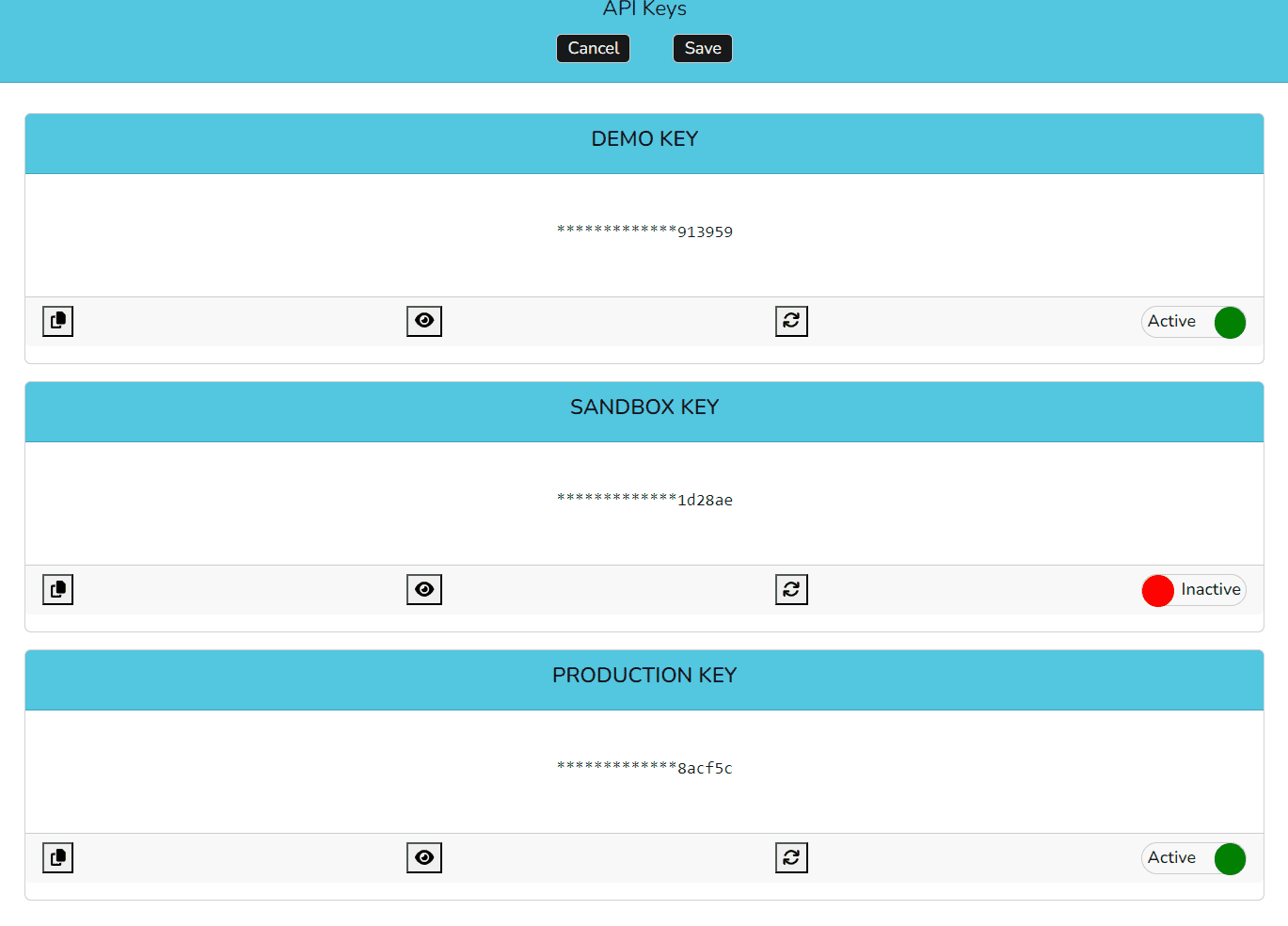
API Key Management Dashboard Interface
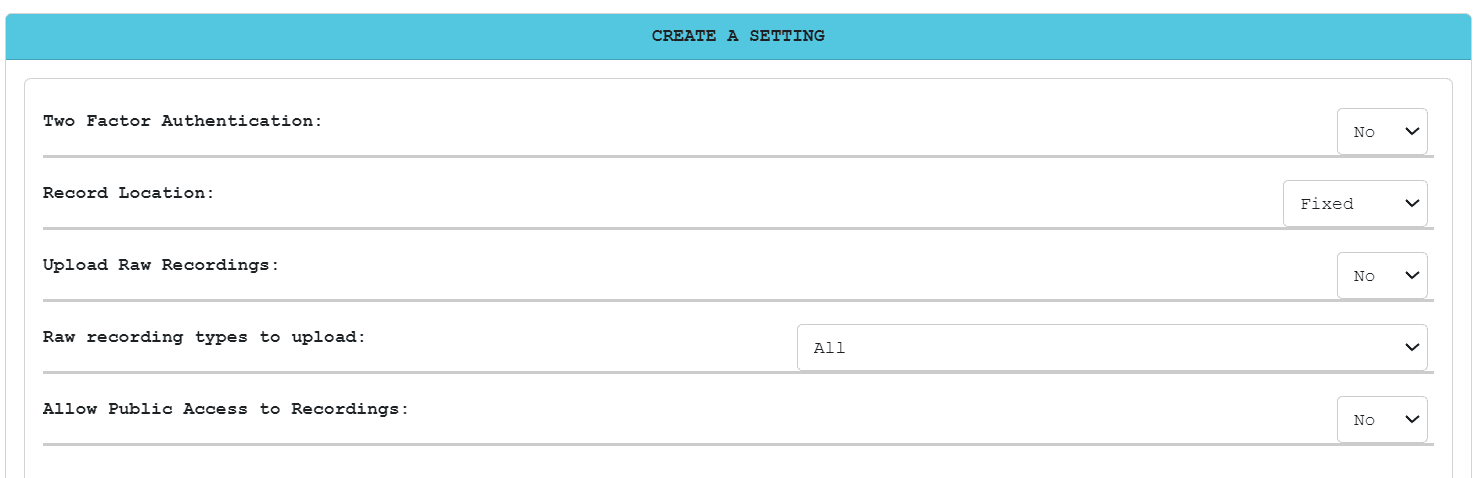
Start with the setting you need, then follow the focused panel for storage, recording uploads, access, or account preferences.
MediaSFU provides comprehensive settings that allow you to customize your platform experience. Configure everything from general preferences to advanced storage options and recording settings.
Basic platform preferences and user interface customization
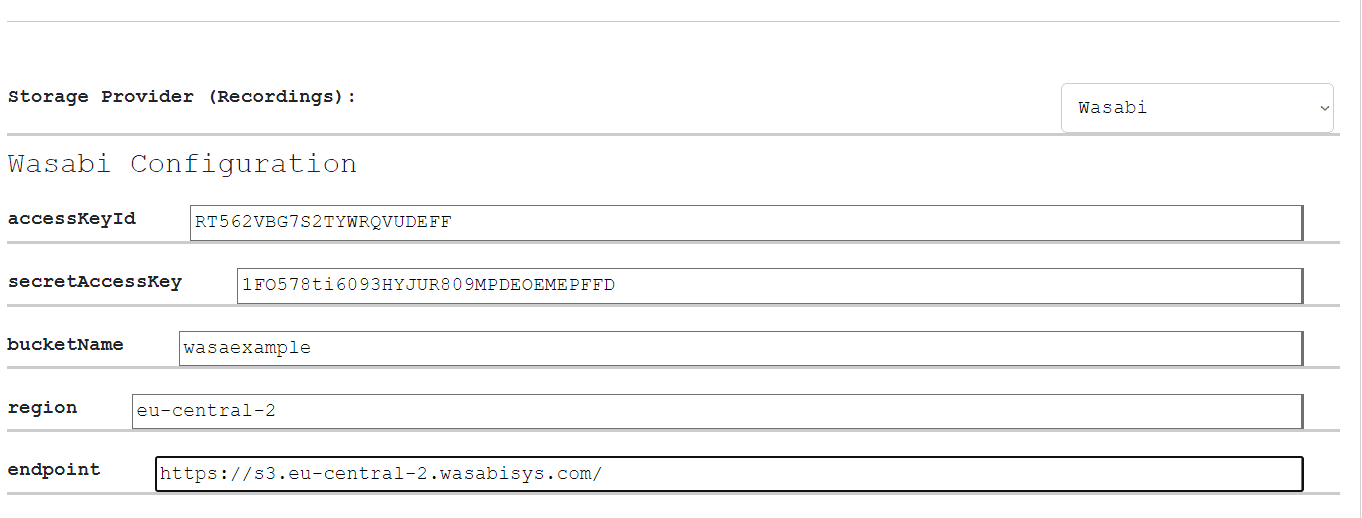
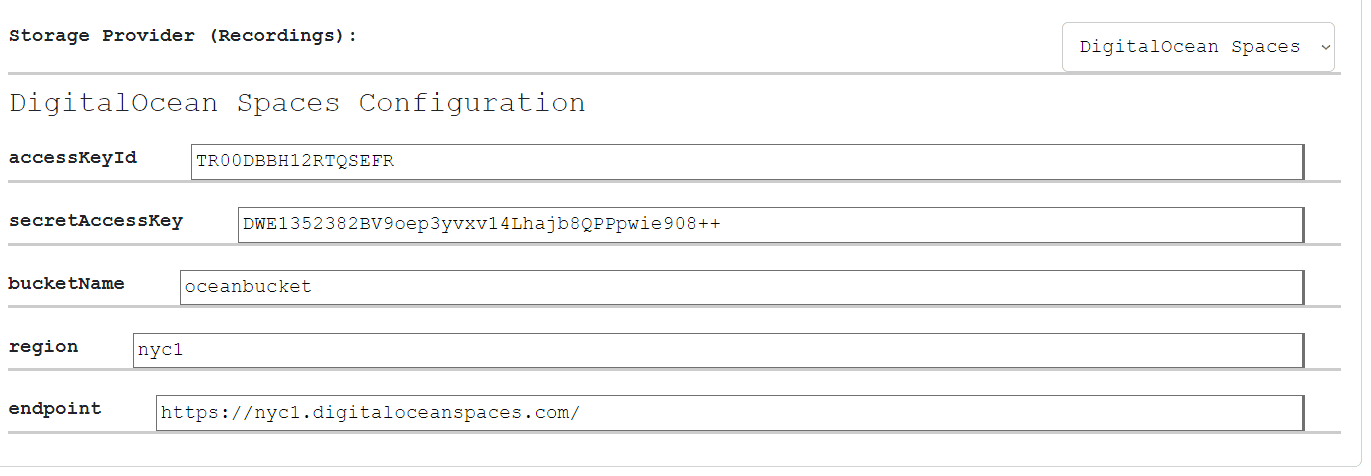
Configure S3 storage, recording locations, and file management
Control raw recording uploads and file processing options
Configure public access permissions and recording visibility
Use AI credentials to let MediaSFU features such as AI agents, AI notes, or AI-assisted workflows use the provider account you choose.
What this setting controls
An AI credential is the saved connection between MediaSFU and an AI provider account. Give it a clear nickname so your team can recognize it later.
Create separate entries for production agents, testing, or note-taking if your team separates usage by workflow.
Use nicknames such as Support Agent, Webinar Notes, or Sandbox AI so users know which one to select.
Only trusted users should add, reveal, rotate, or remove provider credentials.
A developer usually only needs this when an external system must create, rotate, or select credentials automatically.
SIP configurations connect MediaSFU to phone providers so teams can route inbound or outbound calls into live rooms and call workflows.
What SIP configs do
A SIP configuration tells MediaSFU how your phone provider should connect calls. Treat it like a routing profile for a phone number or calling workflow.
Use this when callers dial a number and should reach a MediaSFU-powered room or call flow.
Use this when your team needs calls to be placed from the dashboard or an approved call workflow.
Keep provider account details current so call routing does not break unexpectedly.
Bring in a developer when SIP calls need to be triggered by another application or when routing must be automated.
Widgets let a site visitor start a call, join a meeting, or reach an AI agent without your team building a full custom interface first.
Pick by user intent
Start by deciding what the website visitor should be able to do. The right widget is the one that makes that action obvious and low-friction.
Use when a visitor should reach your team by voice directly from a web page.
Use when visitors need a simple entry point into a scheduled MediaSFU room.
Use when visitors need guided help, intake, triage, or automated support before a human joins.
Most non-developer work is choosing and configuring the widget. A web admin only needs the embed step.
Translation settings help participants follow a room in the language that works for them, while hosts keep the session organized.
What to decide first
Before enabling translation, decide which participants need translated audio, which languages should be available, and whether translation is room-wide or personal.
Useful when the whole session should support multiple spoken languages.
Useful when individual participants need their own listening language.
If notes or transcripts are enabled, check whether translated output should also feed those workflows.
A developer only needs to step in when translation choices must be preselected from a custom app or room creation flow.
Disposable keys are temporary, scoped credentials for partners, vendors, or workflows that should not receive your main account API keys.
What disposable keys are for
Use a disposable key when another person or system needs limited MediaSFU access for a defined purpose. It should expire or be removable without affecting your main account keys.
Give a partner access for a launch, event, proof of concept, or short support window.
Limit what the key can do so the recipient only has the access they need.
Restrict usage to approved domains when the key is tied to a web surface.
A developer may need the key value and the allowed use case, but should not need your main API keys.