EngagePhone, web widgets, and live rooms
Live product proof
Don’t watch a demo. Run one.
Call a real agent, open a real room, drop a live widget into a page — right here, with no account. Start with what your customer sees, then open the team side behind it.
Runs in this browser
No install, no account
Voice media ≈ $0.006 / hour
Hi — what would you like to see working?
Pick one. I’ll open it and show you exactly what to try. No account needed.AutomateAgents, campaigns, and call flows
CaptureRecordings, transcripts, and AI Notes
ExtendAPIs, SDKs, SIP, and custom providers
Embed it in your pageNot sure where to start? This is a good first one.Three steps below, each one live in this browser. I can walk you through them — 4 steps, ~4 min — or you can go straight in.
How much do you want to build?
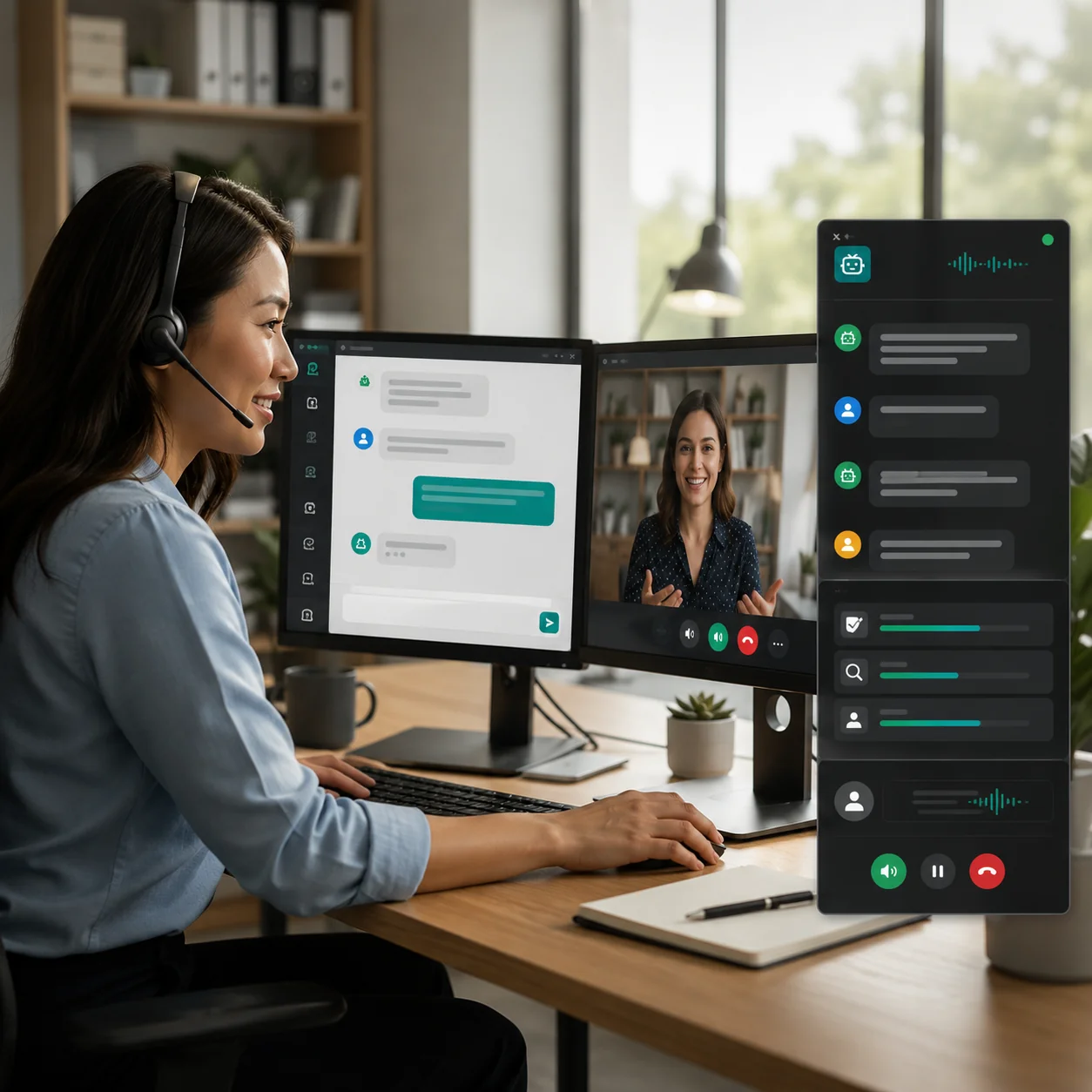
Your three steps · Embed it in your page
Put a live conversation on a page you already have.
Teams land here when a contact form is the only way in. Someone with a question waits hours for a reply, and most of them never come back.
Try this
- Press Preview click-to-call on the Customer Support Center card and let it connect.
- Switch the preview to Web Agent and type a question a real customer would ask.
- Run the paired demo in this track to watch that same conversation reach the operator side.
You'll know it worked when
A browser tab you never configured is holding a live conversation — no install, no account — and the operator view is showing the same session.
Before you start
- Click-to-call and the agents ask for microphone permission
- Use headphones — laptop speakers cause echo
- Sessions are temporary and clean themselves up
- Media-only voice runs about $0.006 per hour
Paired demo
Ask as a customer. Answer as the team.
The widget is what a visitor sees on your site. The dashboard is where your team picks the conversation up. Both are live and both are the same session — nothing is created until you press start.
Try it now
Ask as the customer. Watch the operator side.
Type what a customer would really send — "where is my order?" — then watch it land on the dashboard beside it.
Runs in this browser. Nothing is created until you press start.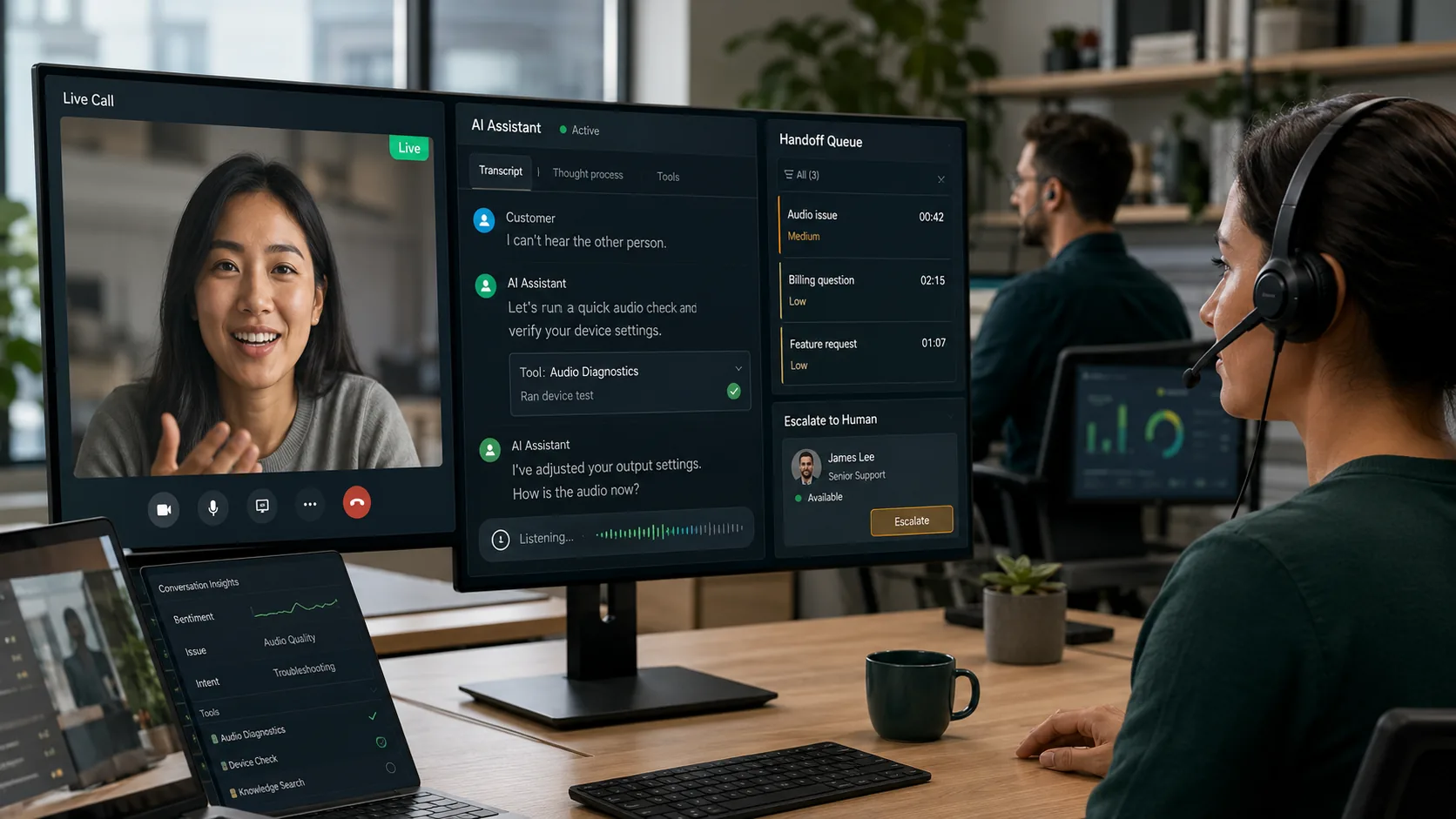
- 1Support is ready for the customer
- 2Customer asks a question
- 3Operator dashboard opens on the same session
- 4Operator responds, co-pilots, or takes over
Public support surface, secured agent workspace
Run AI-only, human-only, or co-pilot support, then take over with the conversation context intact.
PublicAI Agent PlusPrivateAgents Dashboard
Browser and phone calls, one operational desk
Monitor AI-handled browser or phone calls — listen, hold, mute, or take over with the same call context.
PublicClick-to-call or phone entryPrivateCalls Dashboard
Media-only voice$0.001 / 10 min$0.006 / 60 min
Voice with AI infrastructure$0.021 / 10 min$0.126 / 60 min
Estimates use the current pricing source: $0.0001 per audio minute plus $0.002 per AI infrastructure minute. Before applicable volume discounts; SIP carrier, external AI provider, and recording costs are separate.
Live widget workflows
Pick the outcome. Test the real entry point.
Choose a customer journey, load its live widget in the preview, then follow the shortest setup path for your site or app.
1 Choose2 Preview3 Ship
Support and escalation
Customer Support Center
POPULARWebsite visitors click a button and connect to an AI agent instantly. Complex issues escalate to a human operator monitoring all conversations.
Replaces “file a ticket and wait” with a call that connects in seconds.
Loads right here on this pageScheduled consultations
Telehealth / Remote Consult
Patients join a virtual consultation from any browser. Built-in meeting room with camera preview, device selection, and room code entry. No app required.
Removes the app download and the “which link was it?” email before every appointment.
Loads right here on this pageInbound AI assistance
AI Receptionist
AIAn AI agent handles all incoming calls — answers questions, books appointments, and routes to the right department. Deploy with a single widget or via SIP.
Answers the routine calls — hours, bookings, routing — that never needed a person.
Loads right here on this pageTeam calling and handoff
Enterprise Call Center
PROFull cloud phone system embedded in your CRM or helpdesk. Agents make and receive calls via SIP, with AI handling overflow and real-time analytics.
Gives one team desk for browser and phone conversations, with AI covering overflow.
Loads right here on this pageNext proof pathTry rooms, translation, and AI Notes
Guided tours · 4–6 minutes each
Short on time? Let me show you around.
Pick a tour and I’ll take you through the live demos one stop at a time — what to press, what to watch for, and how you’ll know it worked. Leave whenever you like; I’ll remember where you stopped.
The essentials
A phone agent, a live widget, a translated room and a transcript, back to back. The quickest way to see all of it working.
- Call an AI agent
- Load a live widget
- Join a translated room
- Create a transcript
Hear a phone agent answer
Four minutes on a real phone line, then the same agent without the carrier.
- Book something, then change it
- Talk over it
- Same agent, no phone line
- Put that on your own page
Ship an AI agent
Prove the turn-taking first, then hear what changes when the stack changes.
- Give it a two-turn task
- Change the stack under it
- Run one as an embed
- Watch it reach a human
Keep what was said
One live room, a short wait, and the transcript comes back on its own.
- Launch the room — and write two things down
- Have a short conversation, then end it
- Come back and collect it
- See where that lands in a workflow
Run the meeting
A real room, a second seat, then translation — in that order, because one participant proves nothing.
- Open Conference
- Take a second seat
- Add a second language
- See it as a finished product
Stream at scale
The viewer path is the whole trick — watch how little it asks for.
- Open Broadcast
- Compare it with Webinar
- Watch both paths in one room
- Put the viewer side on your own page
Embed it in your page
Customer side, operator side, then the snippet that ships both.
- Preview Click-to-Call
- Switch to Web Agent
- See the operator half
- Take the snippet
Open something finished
Three whole products in three minutes, each closing when you do.
- Place a bid
- Cut a camera to air
- See what they are made of


What you can try here
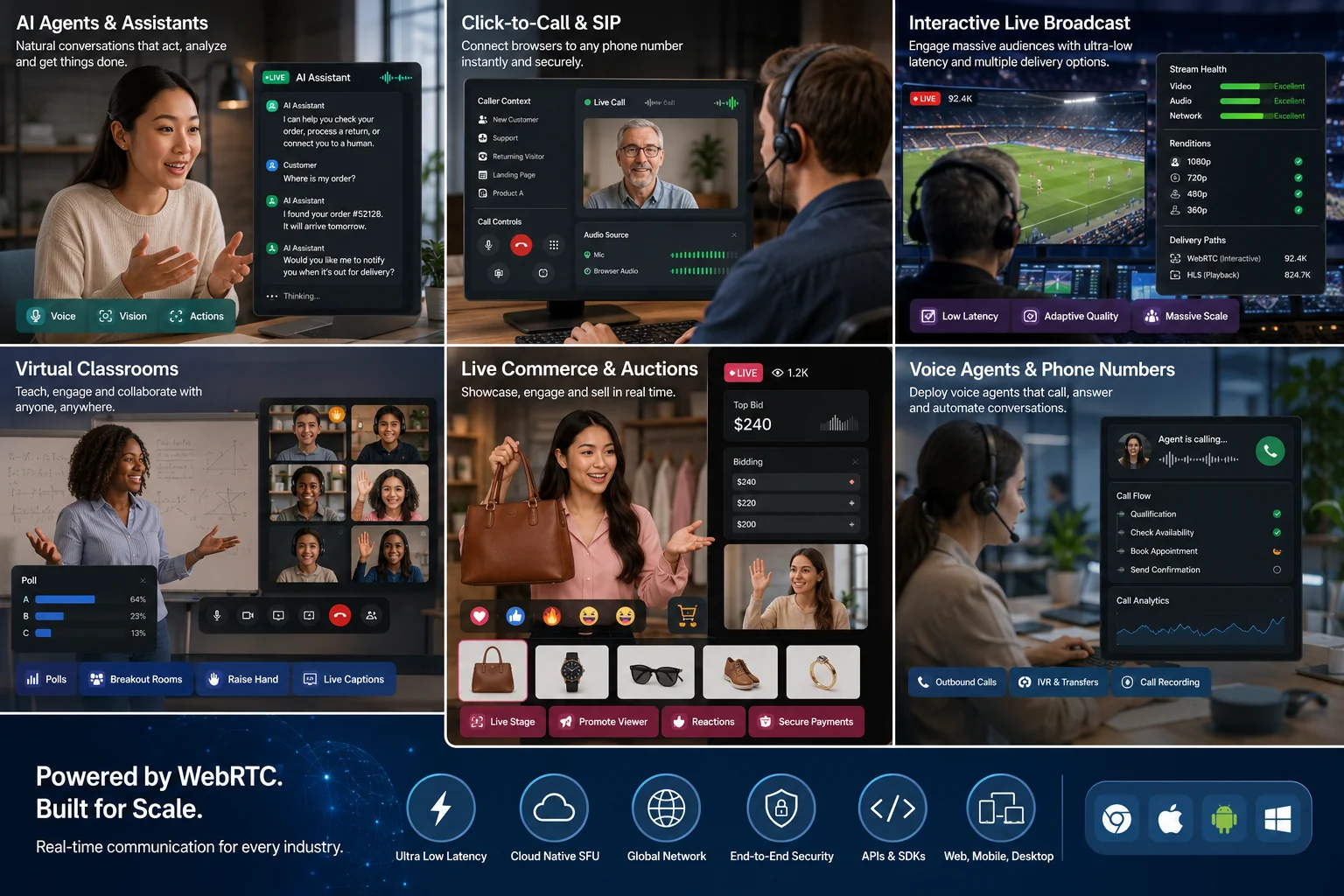
Click-to-Call, Meeting Portal, AI Agent and Web Agent ran live on this page; Calls and Agents Dashboard complete the set. All six are the same embeds Widget Studio hands you for your own site.
Calls, webinars, conferences and broadcasts, with real-time translation across 50+ languages and AI Notes transcripts from any live room.
Basic, advanced and playground AI agents at agents.mediasfu.com — free with MediaSFU API keys, or bring your own providers.
Live AI voice agents over SIP and PSTN, on numbers you can dial now.
- +1 647 558 6650CA · Restaurant Reservations
- +1 587 407 1990CA · Real Estate Lead Qualifier
- +44 7445 146575GB · Medical / Dental Scheduler
- +1 785 369 1724US · Technical Support Helpdesk