Go Live from OBS into Your App with WHIP, Then Reach Everyone with HLS

You already produce your show in OBS: scenes, lower thirds, a second camera, a screen capture. With WHIP you can send that program straight into a MediaSFU room, so the people in the room see it as a live participant. Then you can turn the same stream into an HLS broadcast that plays on any phone, TV or browser, for as many viewers as you need.
This guide takes you from an empty project to a live show in four requests. No streaming server to install and no plugins: OBS Studio 30 and later speaks WHIP out of the box.
What you will build
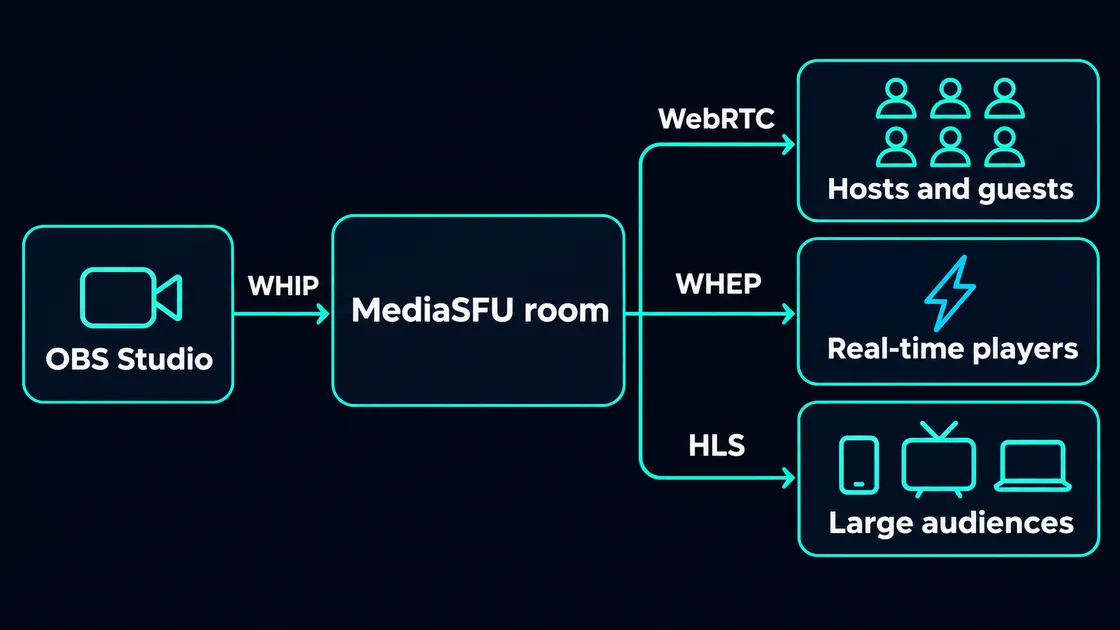
OBS sends one stream into the room. Hosts and guests see it live over WebRTC, players that need real time use WHEP, and everyone else watches the HLS broadcast.
By the end you will have:
- a room your host and guests can join,
- OBS publishing into that room over WHIP,
- an HLS broadcast with a player you can drop into any page,
- a clean way to end it all when the show is over.
Why WHIP
WHIP (WebRTC-HTTP Ingestion Protocol) is an open standard for sending WebRTC media with one HTTP request. For a live show it gives you three things:
| What you get | Why it matters |
|---|---|
| Sub-second delivery into the room | Hosts can react to the program feed as it happens, not seconds later. |
| One URL and one token | OBS needs a server address and a bearer token. Nothing else to configure. |
| Built into OBS 30+ | Choose WHIP as the service in OBS settings. No plugins. |
OBS sends H.264 video and Opus audio over WHIP, which is exactly what a WebRTC room expects, so nothing needs to be re-encoded on the way in.
Before you start
- OBS Studio 30 or later (or any encoder that supports WHIP).
- A MediaSFU API username and key. Get them at mediasfu.com/api-keys. Start with a sandbox key: sandbox rooms start with
s, production rooms withp. - A server-side place to keep the key. Every request below runs on your server. Never put your API key in a browser or app.
Set two environment variables on your server:
export MEDIASFU_API_USERNAME="your-api-username"
export MEDIASFU_API_KEY="your-api-key"
Step 1: Create the room
curl -X POST https://mediasfu.com/v1/rooms/ \
  -H "Content-Type: application/json" \
  -H "Authorization: Bearer $MEDIASFU_API_USERNAME:$MEDIASFU_API_KEY" \
  -d '{"action":"create","userName":"host","duration":60,"capacity":10,"eventType":"webinar"}'
The response includes roomName (the room's ID, which the streaming routes call meetingID) and publicURL. Open publicURL to enter as the host. The room is now live and ready for the stream.
export MEETING_ID="s9x2k7mp4q81" # the roomName from the responseStep 2: Create a WHIP ingest session
Ask MediaSFU for a place to send the stream:
curl -X POST "https://mediasfu.com/v1/meetings/$MEETING_ID/external-sessions" \
  -H "Content-Type: application/json" \
  -H "Authorization: Bearer $MEDIASFU_API_USERNAME:$MEDIASFU_API_KEY" \
  -d '{"displayName":"Studio camera","ingest":{"protocol":"whip","tracks":["audio","video"]}}'
You get back everything OBS needs:
{
  "success": true,
  "sessionID": "ems_…",
  "state": "…",
  "ingest": {
    "protocol": "whip",
    "tracks": ["audio", "video"],
    "url": "https://…",
    "token": "…",
    "expiresAt": "…"
  }
}
Keep sessionID: you will use it to check the stream, start the broadcast and end it later. The token is short-lived, so start streaming before expiresAt.
Step 3: Point OBS at the session
- In OBS, open Settings → Stream.
- Set Service to WHIP.
- Paste
ingest.urlinto Server. - Paste
ingest.tokeninto Bearer Token. - Click OK, then Start Streaming.
Put the token in the Bearer Token field. It doesn't go in the URL.
A tip for later: if you plan to broadcast with HLS, set a keyframe every 2 seconds in Settings → Output. HLS can then cut segments cleanly, and viewers join faster.
Step 4: Check that it is live
curl "https://mediasfu.com/v1/meetings/$MEETING_ID/external-sessions/$SESSION_ID" \
  -H "Authorization: Bearer $MEDIASFU_API_USERNAME:$MEDIASFU_API_KEY"
When state is active and your tracks are listed, look at the room: the stream is there as a participant called "Studio camera". Your hosts can talk over it, bring guests on stage and run the show from the room.
Step 5: Reach everyone with HLS
The room is built for people who take part. For everyone who only watches, start an HLS broadcast from the same stream:
curl -X POST "https://mediasfu.com/v1/meetings/$MEETING_ID/broadcasts" \
  -H "Content-Type: application/json" \
  -H "Authorization: Bearer $MEDIASFU_API_USERNAME:$MEDIASFU_API_KEY" \
  -d "{\"sourceSessionID\":\"$SESSION_ID\"}"
The response gives you broadcastID, the renditions viewers can get (the source quality and the lower ones), and three kinds of playback address:
| Field | What it is |
|---|---|
playbackUrl | The address viewers should use. It may be served from a CDN. |
playbackUrls | More addresses to try, in order. |
originPlaybackUrl | The same stream straight from the media server. Keep it as the last fallback. |
Wait until the broadcast reports that it is active, then hand the addresses to your page from your server. They carry a short-lived token, so fetch fresh ones when they expire.
Step 6: Play it on any page
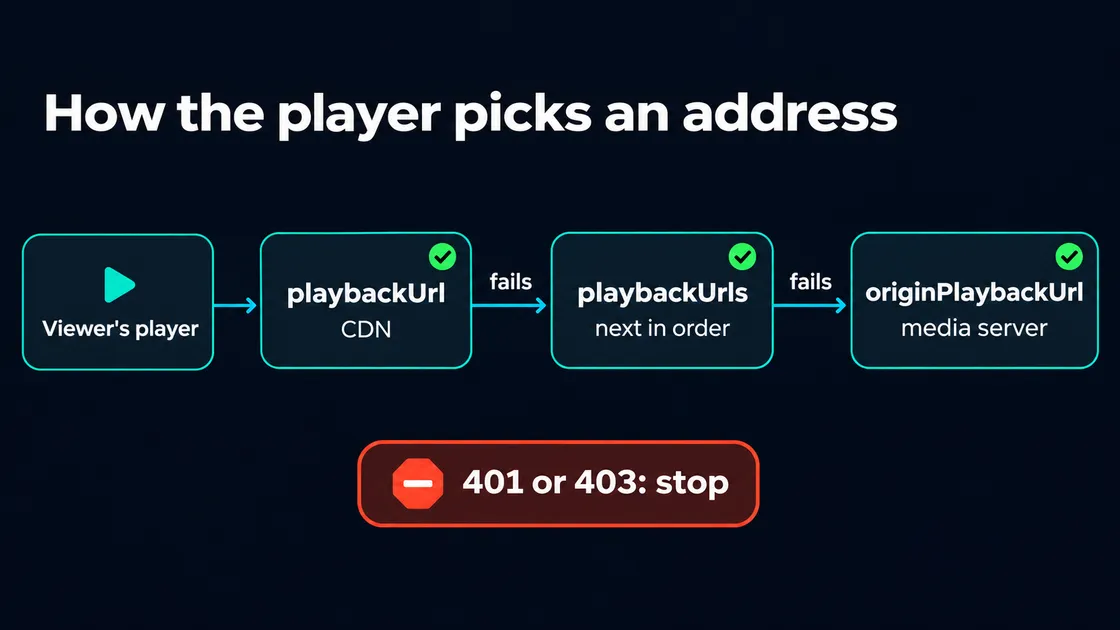
hls.js plays HLS in most browsers, and iOS Safari plays it natively. This player tries each address in order and moves on when one fails. On a 401 or 403 it stops, because a refused token will be refused everywhere:
<video id="live" controls playsinline muted autoplay></video>
<script src="https://cdn.jsdelivr.net/npm/hls.js@1"></script>
<script>
  // From your server, in this order: playbackUrl, then playbackUrls, then originPlaybackUrl.
  const urls = ['PLAYBACK_URL', 'ORIGIN_PLAYBACK_URL'];
  const video = document.getElementById('live');
  let index = 0;
  let hls = null;

  function play() {
    const url = urls[index];
    if (window.Hls && Hls.isSupported()) {
      if (hls) hls.destroy();
      hls = new Hls();
      hls.on(Hls.Events.MANIFEST_PARSED, () => video.play().catch(() => {}));
      hls.on(Hls.Events.ERROR, (_event, data) => {
        if (!data.fatal) return;
        const status = data.response && data.response.code;
        if (status === 401 || status === 403) return; // refused: don't try elsewhere
        if (++index < urls.length) play();
      });
      hls.loadSource(url);
      hls.attachMedia(video);
    } else {
      video.src = url; // iOS Safari plays HLS natively
      video.onerror = () => { if (++index < urls.length) play(); };
    }
  }
  play();
</script>
Using the MediaSFU web SDK? getHlsPlaybackCandidates(broadcast) builds the same list for you, and attachPlayback({ source, fallbackSources }) plays it with the same rules, in SDK versions that include them.
Put it together on your server
Here is the whole flow as one Node.js (18+) script you can adapt. It starts the stream and the broadcast for a room, and returns what OBS and your player need:
const BASE = 'https://mediasfu.com';
const AUTH = `Bearer ${process.env.MEDIASFU_API_USERNAME}:${process.env.MEDIASFU_API_KEY}`;

async function call(method, path, body) {
  const res = await fetch(`${BASE}${path}`, {
    method,
    headers: { 'Content-Type': 'application/json', Authorization: AUTH },
    body: body ? JSON.stringify(body) : undefined,
  });
  const data = await res.json();
  if (!data.success) throw new Error(`${path}: ${data.code || res.status} ${data.error || ''}`);
  return data;
}

const sleep = (ms) => new Promise((r) => setTimeout(r, ms));

// 1. Give OBS somewhere to send the stream.
async function startIngest(meetingID) {
  const s = await call('POST', `/v1/meetings/${meetingID}/external-sessions`, {
    displayName: 'Studio camera',
    ingest: { protocol: 'whip', tracks: ['audio', 'video'] },
  });
  return { sessionID: s.sessionID, obsServer: s.ingest.url, obsBearerToken: s.ingest.token };
}

// 2. Once OBS is live, start the HLS broadcast.
async function startBroadcast(meetingID, sessionID) {
  for (let i = 0; i < 30; i++) {
    const s = await call('GET', `/v1/meetings/${meetingID}/external-sessions/${sessionID}`);
    if (s.state === 'active') break;
    await sleep(2000);
  }
  const b = await call('POST', `/v1/meetings/${meetingID}/broadcasts`, { sourceSessionID: sessionID });
  const urls = [b.playbackUrl, ...(b.playbackUrls || []), b.originPlaybackUrl].filter(Boolean);
  return { broadcastID: b.broadcastID, renditions: b.renditions, urls };
}

// 3. When the show ends: broadcast first, then the ingest session.
async function endShow(meetingID, sessionID, broadcastID) {
  await call('DELETE', `/v1/meetings/${meetingID}/broadcasts/${broadcastID}`, { reason: 'event_finished' });
  await call('DELETE', `/v1/meetings/${meetingID}/external-sessions/${sessionID}`, { reason: 'event_finished' });
}

module.exports = { startIngest, startBroadcast, endShow };
Show obsServer and obsBearerToken only to the person running OBS (an operator page behind your own sign-in), and serve urls to your viewers' player.
HLS or WHEP: which one for your viewers?
| HLS | WHEP | |
|---|---|---|
| Delay | A few seconds behind the room | Real time, no delay |
| Best for | Big audiences who only watch | Viewers who react, bid, vote or join the conversation |
| Plays in | Any phone, TV or browser | WebRTC players and the MediaSFU SDKs |
| Scale | Put a CDN in front for public audiences | MediaSFU serves 500K+ real-time viewers |
Many shows use both: real-time for the people who take part, HLS for everyone else. See WHEP playback for the real-time path.
End the show cleanly
Stop streaming in OBS, then delete the broadcast and the ingest session, in that order:
curl -X DELETE "https://mediasfu.com/v1/meetings/$MEETING_ID/broadcasts/$BROADCAST_ID" \
  -H "Content-Type: application/json" \
  -H "Authorization: Bearer $MEDIASFU_API_USERNAME:$MEDIASFU_API_KEY" \
  -d '{"reason":"event_finished"}'

curl -X DELETE "https://mediasfu.com/v1/meetings/$MEETING_ID/external-sessions/$SESSION_ID" \
  -H "Content-Type: application/json" \
  -H "Authorization: Bearer $MEDIASFU_API_USERNAME:$MEDIASFU_API_KEY" \
  -d '{"reason":"event_finished"}'
If something goes wrong
| What you see | Likely cause | Fix |
|---|---|---|
| OBS reports an authorization error | The token expired, or it was pasted into the URL | Create a new session and paste the token into Bearer Token |
| A request is declined | The room has ended, or streaming isn't on for your account yet | Check the room is running. If streaming isn't available, contact support@mediasfu.com |
| The session never becomes active | OBS hasn't connected yet | Confirm OBS shows it is live, then check the session again |
| The broadcast is declined | The source has no video yet | Wait for the session to be active with a video track |
Good to know
- RTMP: OBS 30+ publishes over WHIP, so you don't need RTMP. If your workflow needs RTMP, RTMPS or SRT, contact support@mediasfu.com.
- Quality: MediaSFU produces the source quality and the lower ones. It never upscales, so send the quality you want viewers to get.
- Segments: broadcasts use complete CMAF segments rather than partial-segment Low-Latency HLS. When viewers must react in real time, use WHEP.
- Recordings: if you record the room, recordings are kept for 72 hours and then deleted, so download or deliver them to your own storage within that window.
Next steps
- Stream from OBS (WHIP): the reference version of steps 2 to 4.
- Broadcast with HLS: every field and option.
- Live streaming on MediaSFU: what else you can build for live shows.
Have a question about your setup? Ask on the MediaSFU forum or reach us at support@mediasfu.com.