Everyone Hears Their Own Language: Live Translation in a MediaSFU Room
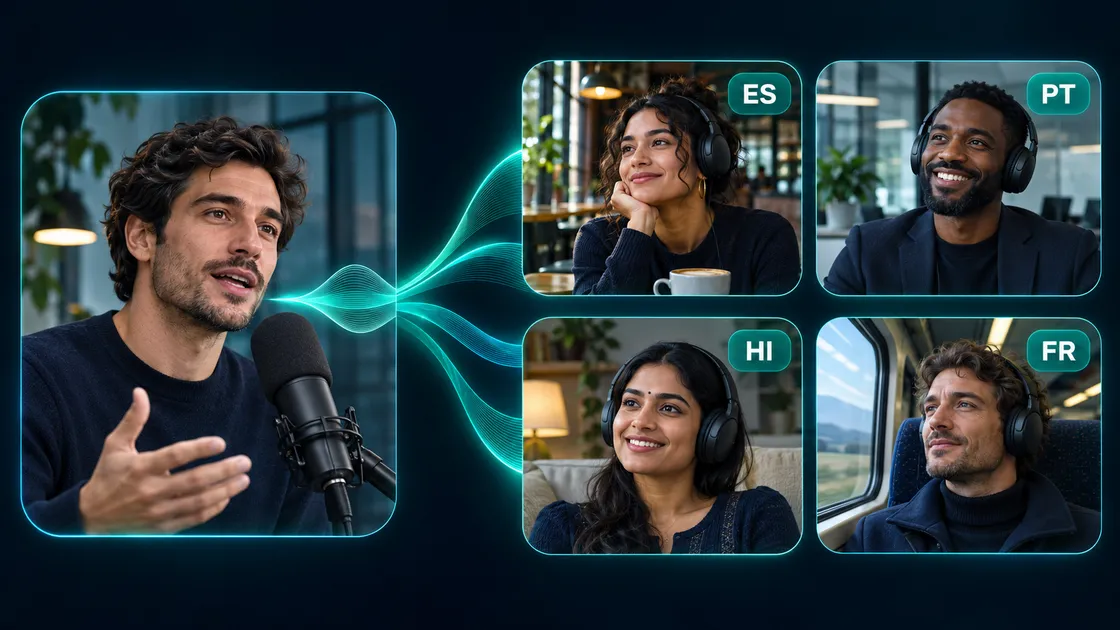
Picture a talk with listeners in five countries. The speaker uses English. A listener in Madrid hears it in Spanish, one in São Paulo in Portuguese, one in Delhi in Hindi, each in a natural voice and with captions on screen. Nobody waits for an interpreter to catch up, and nobody settles for a shared language they only half follow.
That is what live translation in a MediaSFU room does. This guide shows how it works, how to try it in a minute, and how to build it into your own app with a few lines of code.
Try it first
Open the multilingual event showcase. It is a real room, not a recording. Join from two devices, pick a different listening language on each, and talk. You will hear yourself translated on the other device.
How it works
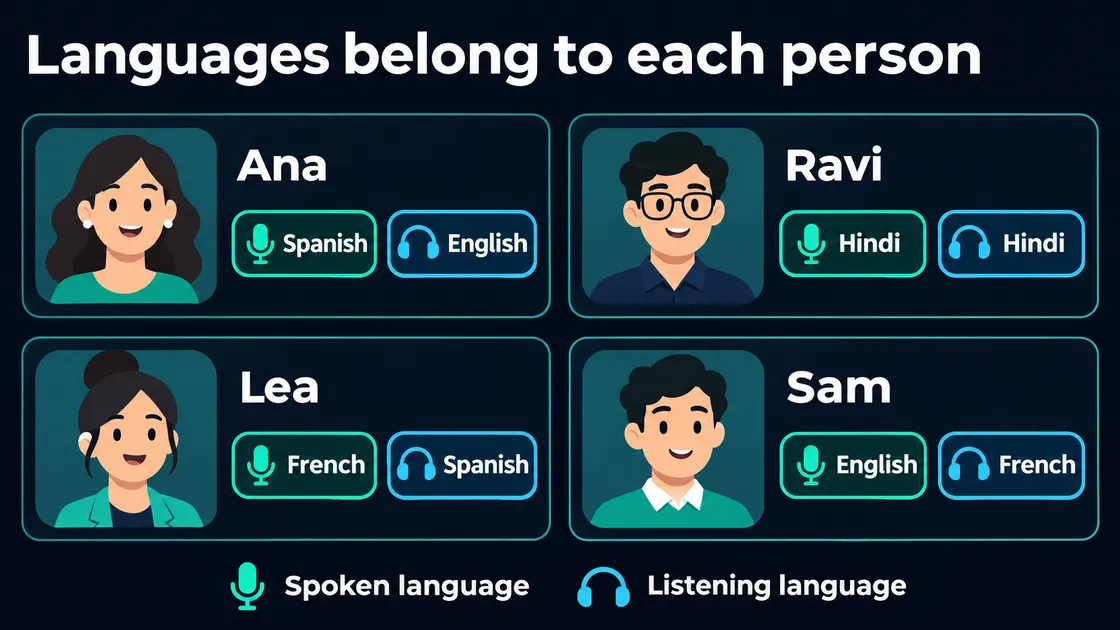
Every person in the room has two language settings:
- Spoken language: the language they talk in.
- Listening language: the language they want to hear.
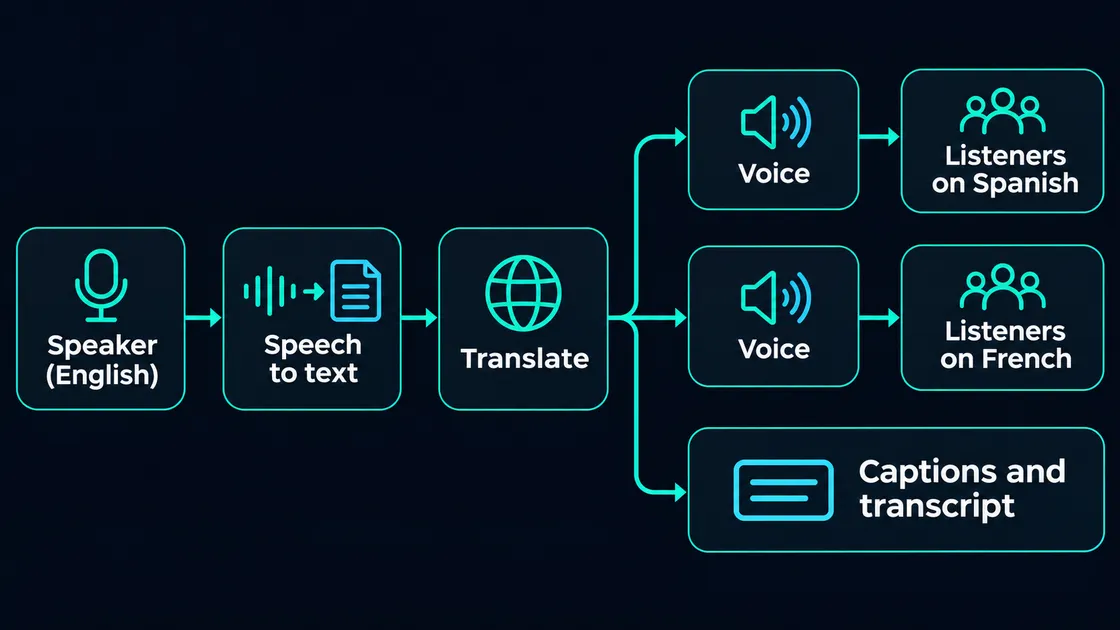
When someone speaks, MediaSFU turns their speech into text, translates it into each listening language that people in the room have picked, and voices it in a natural voice for that language. Each listener hears their own channel, with live captions alongside.
Because the languages belong to each person, not to the room, a room can mix them freely: a panel with two speaking languages and an audience listening in six works the same way as a one-to-one call.
What you can switch on
| Feature | What it gives you |
|---|---|
| Translated audio | Each listener hears speakers in their own language, in a natural voice |
| Live captions | Captions in the listener's language, for noisy places and for accessibility |
| Transcript | A written record of the translated meeting |
| A voice per language | Pick the voice each language is spoken in |
| Language shortlist | Offer any language, or a short list for each room |
| AI notes | Notes and a transcript from the translated meeting |
| Your own providers | Use your own speech, translation and voice providers, or start with the system pool on a Teams plan |
Translation works in meeting rooms, in broadcasts with HLS language tracks for large audiences, and in voice calls.
Three ways to add it
1. No code: an event page
If you are running an event, a service or a training session, you don't need to write code. Create a translation setup once, switch it on for a room, and share the speaker link and the listener link. Each listener picks a language when they join. See MediaSFU for events for what an event can include.
2. Your server: one field on room create
Creating rooms from your backend? Add supportTranslation to the create request:
curl -X POST https://mediasfu.com/v1/rooms/ \
  -H "Content-Type: application/json" \
  -H "Authorization: Bearer $MEDIASFU_API_USERNAME:$MEDIASFU_API_KEY" \
  -d '{
    "action": "create",
    "userName": "host",
    "duration": 90,
    "capacity": 200,
    "eventType": "webinar",
    "supportTranslation": true,
    "translationOutputMode": "audio",
    "translationConfigNickName": "my-event-languages"
  }'
What the fields do:
| Field | Values | Meaning |
|---|---|---|
supportTranslation | true | Turns translation on for this room |
translationOutputMode | audio or text-only | audio voices the translation. text-only gives captions and transcript without voices, which suits notes-only rooms |
translationConfigNickName | your setup's name | Which translation setup the room uses: providers, voices and language list |
You create a translation setup once (in the Agents dashboard, or with the /v1/translationconfigs API) and reuse it by name in every room.
3. Your app: set each person's languages
With the SDK, give each participant their languages when they join. Here is a listener page in React with mediasfu-reactjs. The listener picked a language before joining, so they start hearing it straight away:
import { ModernMediasfuGeneric } from 'mediasfu-reactjs';

export function ListenerRoom({ floorLanguage, listenLanguage }) {
  return (
    <ModernMediasfuGeneric
      connectMediaSFU
      returnUI
      // Speakers talk in the floor language; this listener hears their own.
      initialTranslationState={{
        spokenLanguage: floorLanguage,      // for example 'en'
        defaultListenLanguage: listenLanguage, // for example 'es'
      }}
    />
  );
}
The snippet shows only the translation part: join the room the way your app already does, as in the React quickstart. People can also switch their listening language from inside the room, so a listener who picked the wrong one can fix it in a moment.
Design tips for multilingual rooms
- Name the floor language. Tell speakers which language the room expects. Translation follows whatever they speak, but a clear floor language keeps the panel consistent.
- Offer a shortlist for big events. Ten well-chosen languages are easier to pick from than a hundred, and a shortlist keeps your voice choices tidy.
- Use captions for loud rooms. In a hall or on a train, captions in the listener's language often beat audio.
- Pick
text-onlyfor note-taking rooms. When nobody needs to hear the translation, captions and a transcript are all you need. - Go to HLS for large audiences. For a big stream where most people only watch, a broadcast with HLS language tracks lets each viewer choose their language on any device.
Where teams use it
- Events and conferences: one stage, every attendee in their own language.
- Faith and community groups: weekly services and meetings that welcome every language in the congregation.
- Training and education: one instructor, learners in many countries.
- Support and sales calls: a customer and an agent who don't share a language, talking naturally.
- Health consultations: a doctor and a patient who speak different languages. Your clinic stays in charge of consent and records.
Get started
- Open the showcase and hear it for yourself.
- Read the translation product page for plans and providers.
- Get your API keys at mediasfu.com/api-keys and add
supportTranslationto your next room.
Questions about languages, voices or your own providers? Ask on the MediaSFU forum or write to support@mediasfu.com.